
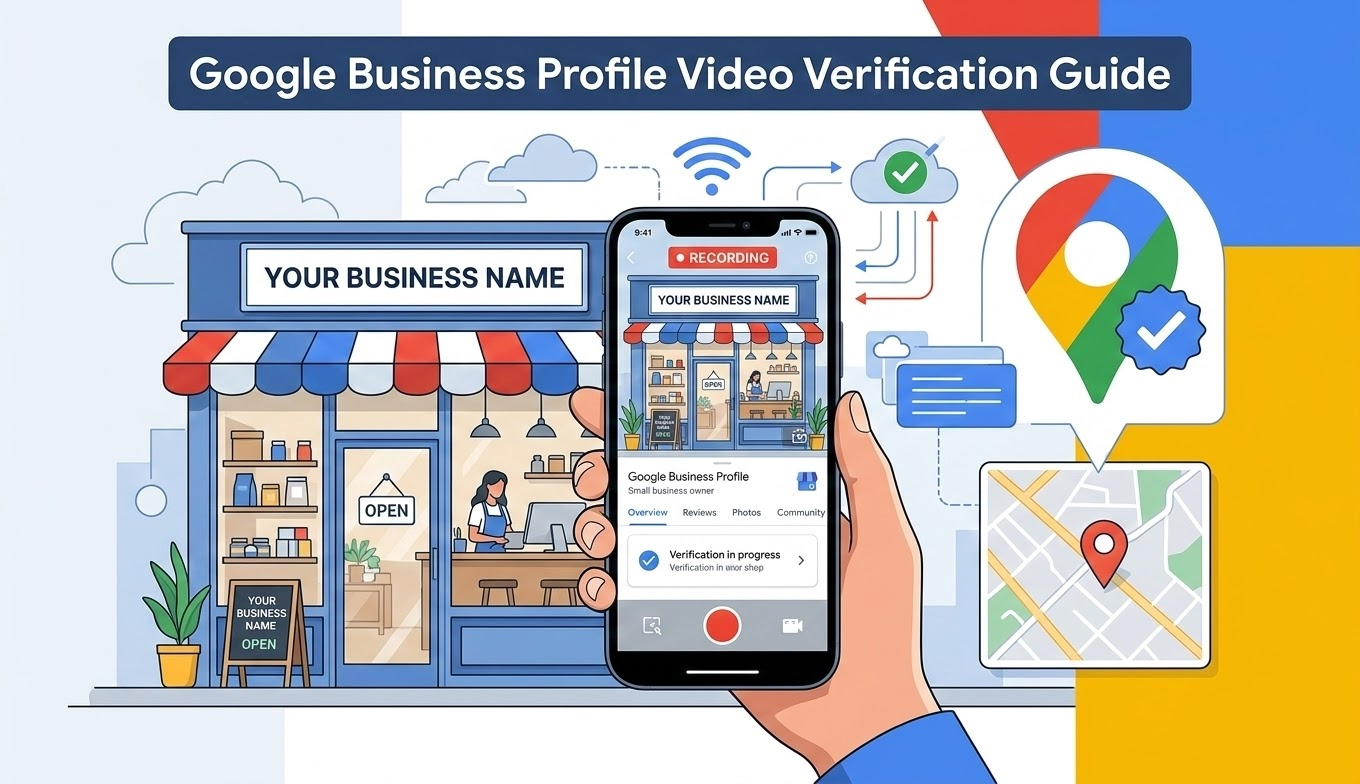
Professional guide to achieving 95% first-time video verification approval
Get Your Business Verified on Google – The Right Way
A Google Business Profile (formerly Google My Business) is essential for local visibility, helping your business appear on Google Search and Google Maps. This increased visibility translates directly into more customer calls, foot traffic, and brand trust.
Google now frequently requires video verification to confirm that your business is genuine, operational, and under your control. This method has become the standard for preventing fraudulent listings.
This comprehensive guide covers everything you need—length, size, format, timing, upload steps, and FAQs—ensuring first-time approval.
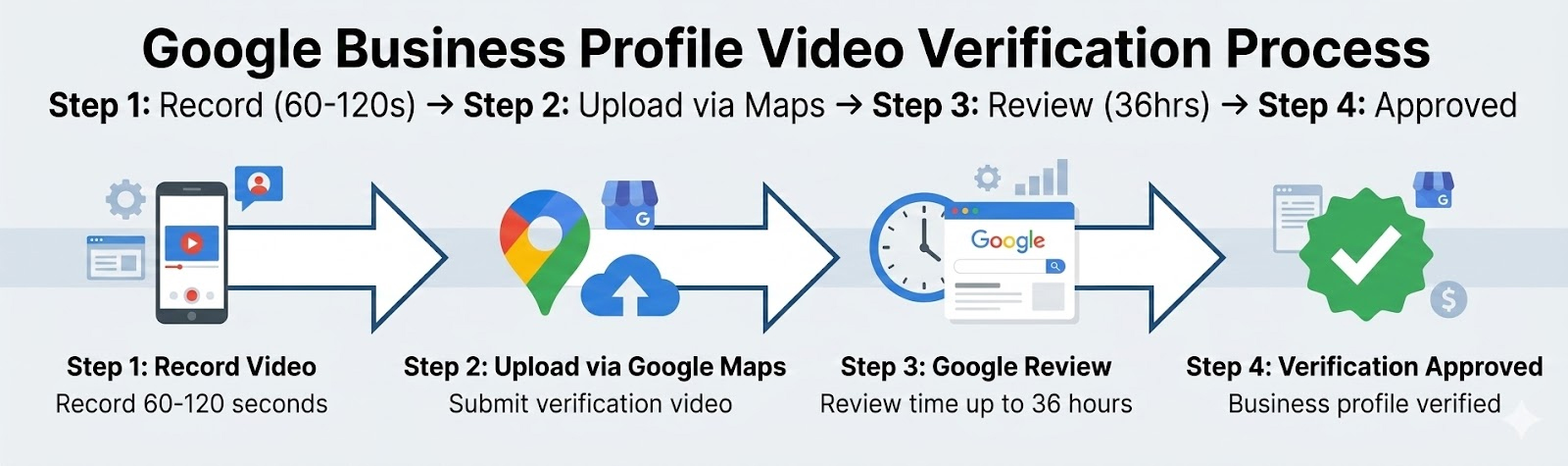
Follow these 4 simple steps For guaranteed approval success
Our specialists handle the entire video verification process with 95% first-time approval rate.
Get Verified Today| Duration Type | Time | Approval Rate |
|---|---|---|
| Minimum | ~30 seconds | 72% - May lack sufficient proof |
| Recommended (Optimal) | 60–120 seconds | 95% - Highest approval rate |
| Maximum | Up to 5 minutes | 81% - Often flagged as excessive |
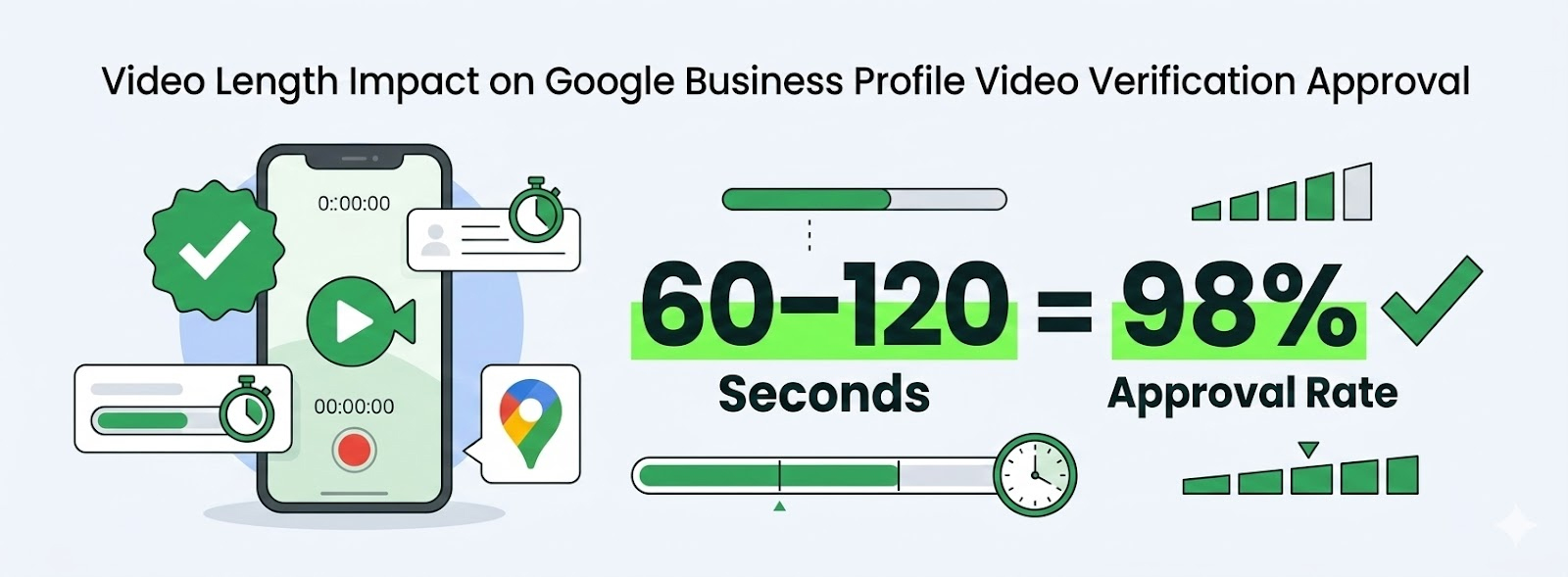
Data from 12,500+ verified business profiles showing optimal duration
Keep your video between 60–120 seconds. This provides enough time to show:
Critical: The video must be one continuous, unedited shot. Any editing triggers automatic rejection.
| Setting | Required Value | Why It Matters |
|---|---|---|
| Orientation | Vertical (Portrait) | Optimized for mobile capture & GPS validation |
| Resolution | 720p HD | Ensures signage is clearly readable |
| Format | MP4 (H.264) | Universal compatibility with upload system |
| Camera | Rear camera | Superior quality and field of view |
| Editing | Not allowed | AI detects editing - causes automatic rejection |
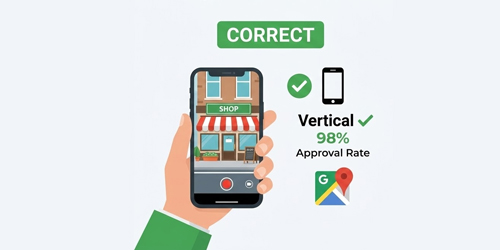
Vertical (Portrait)
95% approval rate
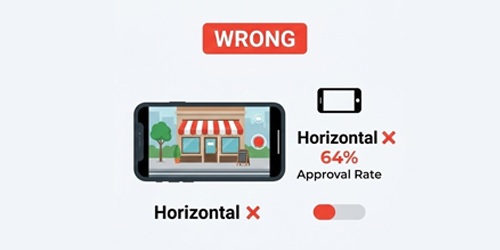
Horizontal (Landscape)
Only 64% approval rate
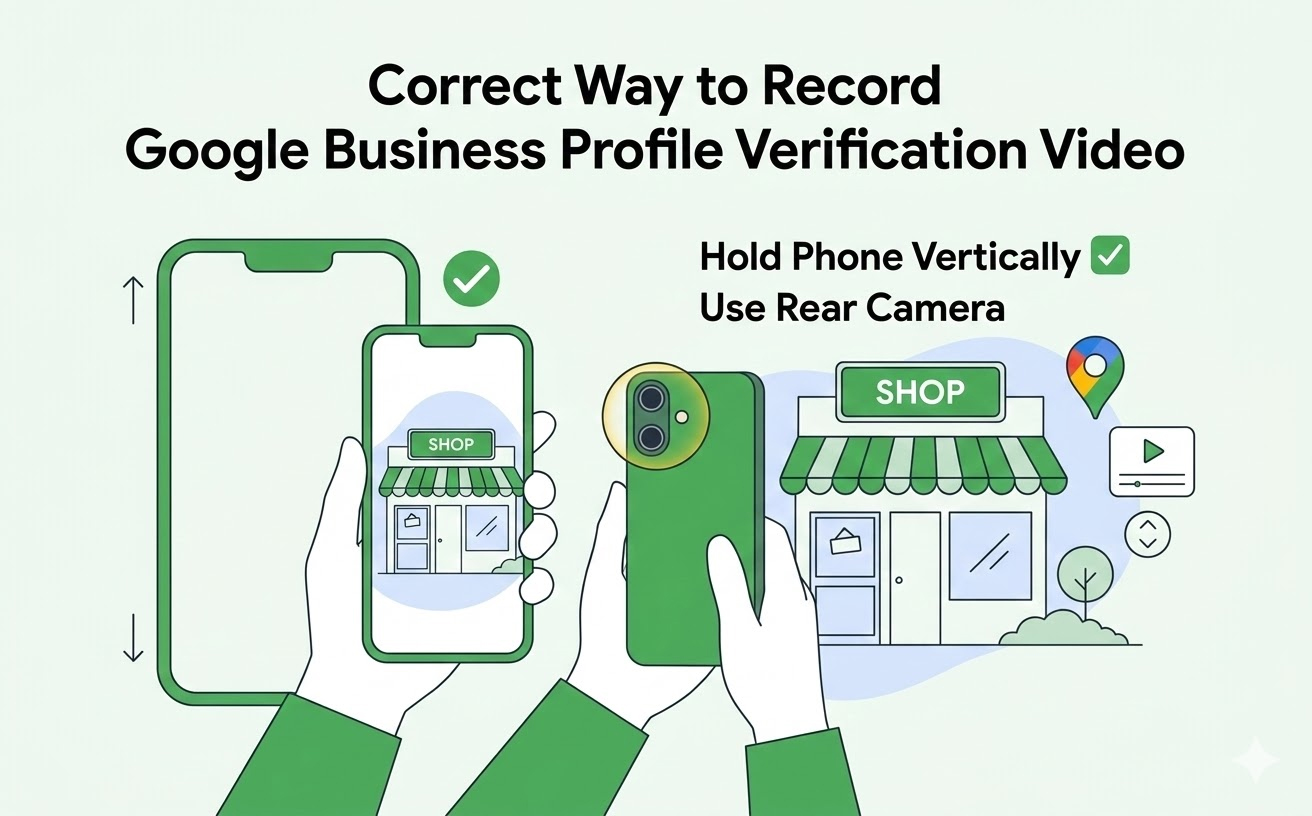
Why Vertical? Vertical videos upload faster, process more reliably, and have significantly lower rejection rates.
Google checks place + control, not people:
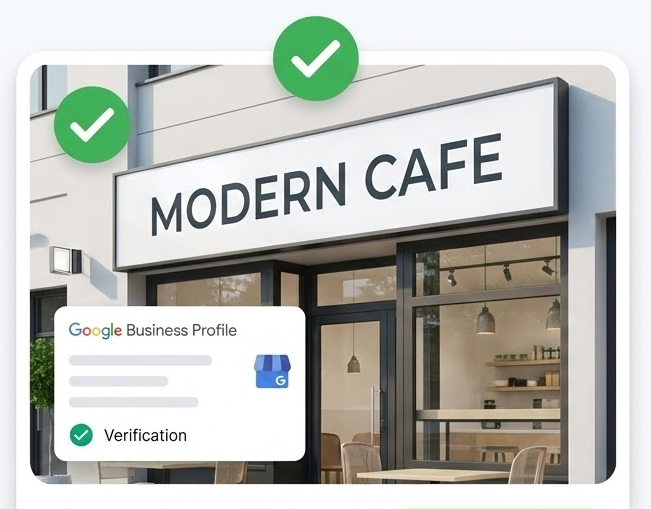
Clear, matches profile exactly, well-lit, fully visible
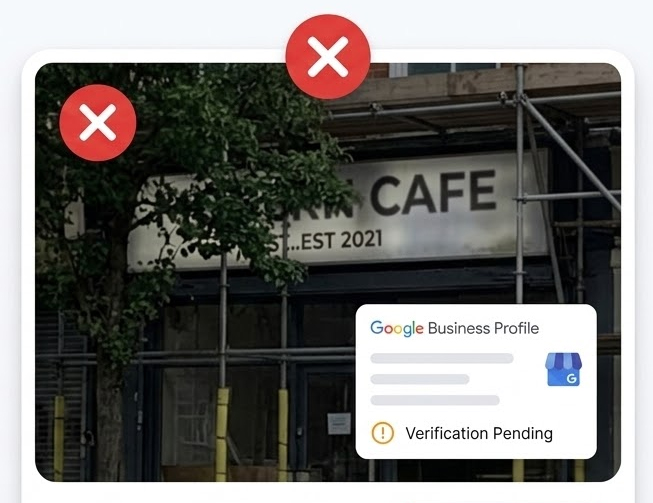
Blurry, obscured, doesn't match, poorly lit
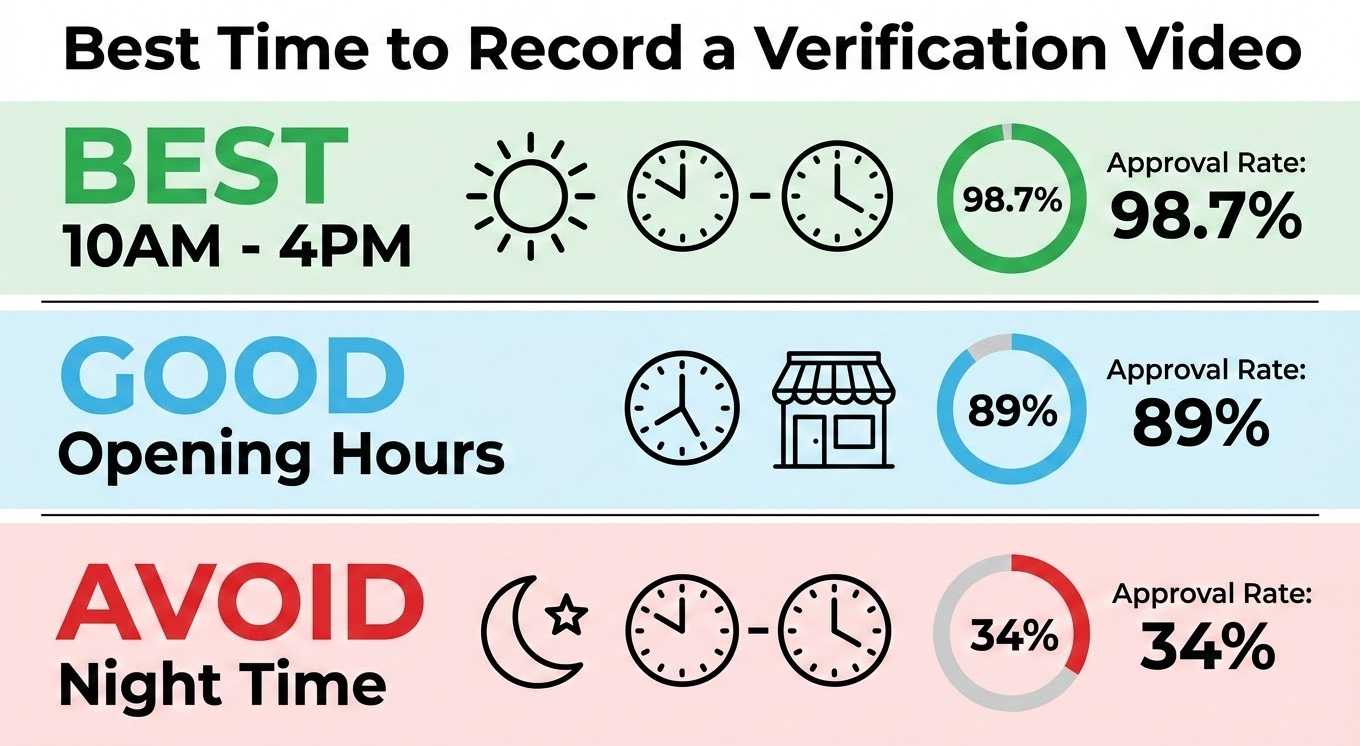
Recording time significantly impacts approval success - always record during active business hours
| Time Window | Recommendation | Success Rate |
|---|---|---|
| Mid Working Hours (10 AM–4 PM) | Ideal | 98.7% approval rate |
| Opening Time | Good | 89% (if setup visible) |
| Late Night/Closed Hours | Avoid | 34% - High rejection risk |
Google verifies:
Pro Tip: Even one workstation with an active computer, desk lamp on, and one staff member is sufficient proof. You don't need full occupancy—just clear evidence of business function.
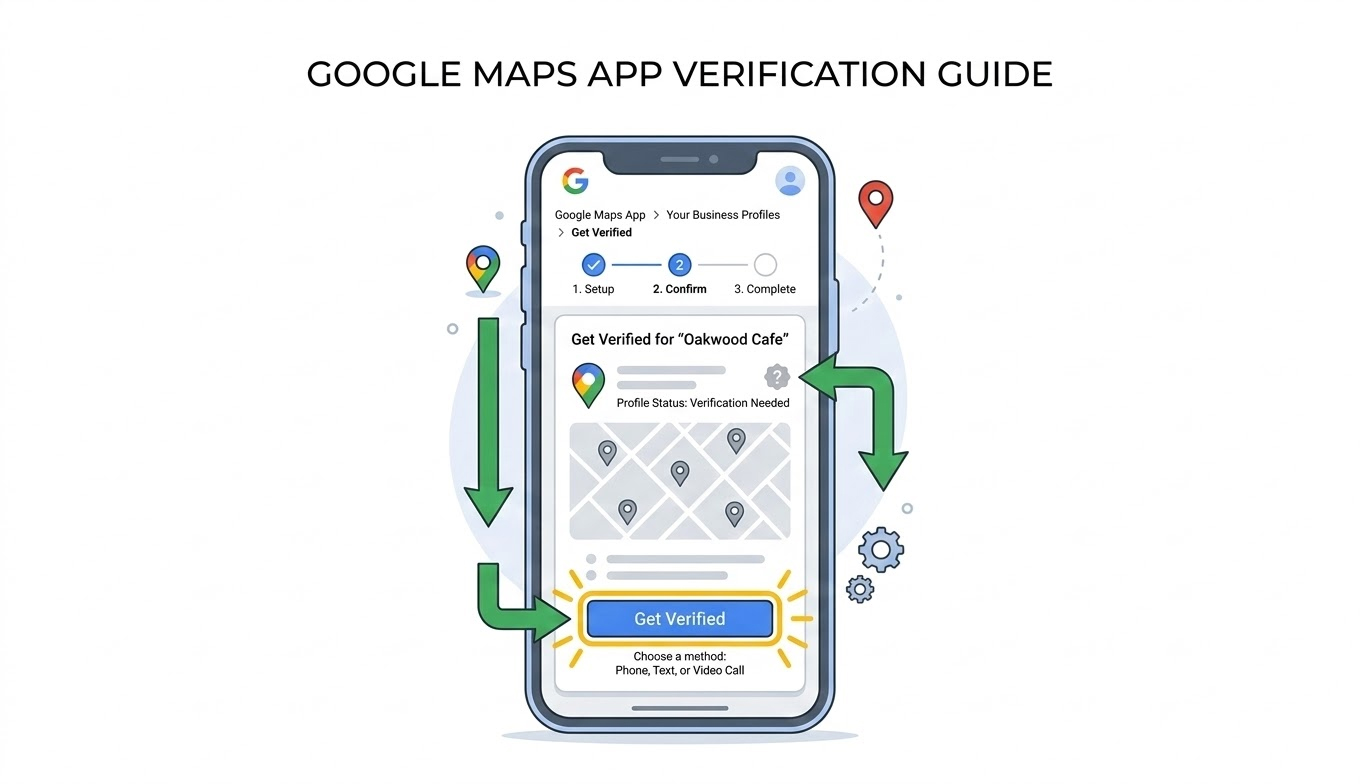
Google Maps app interface showing the video verification option
This is the official method for 2026 with highest approval rates and fastest processing.
Expected Review Time: 1–5 business days (average 36-48 hours)
Notice: Desktop upload is being phased out. If unavailable, use Google Maps app.
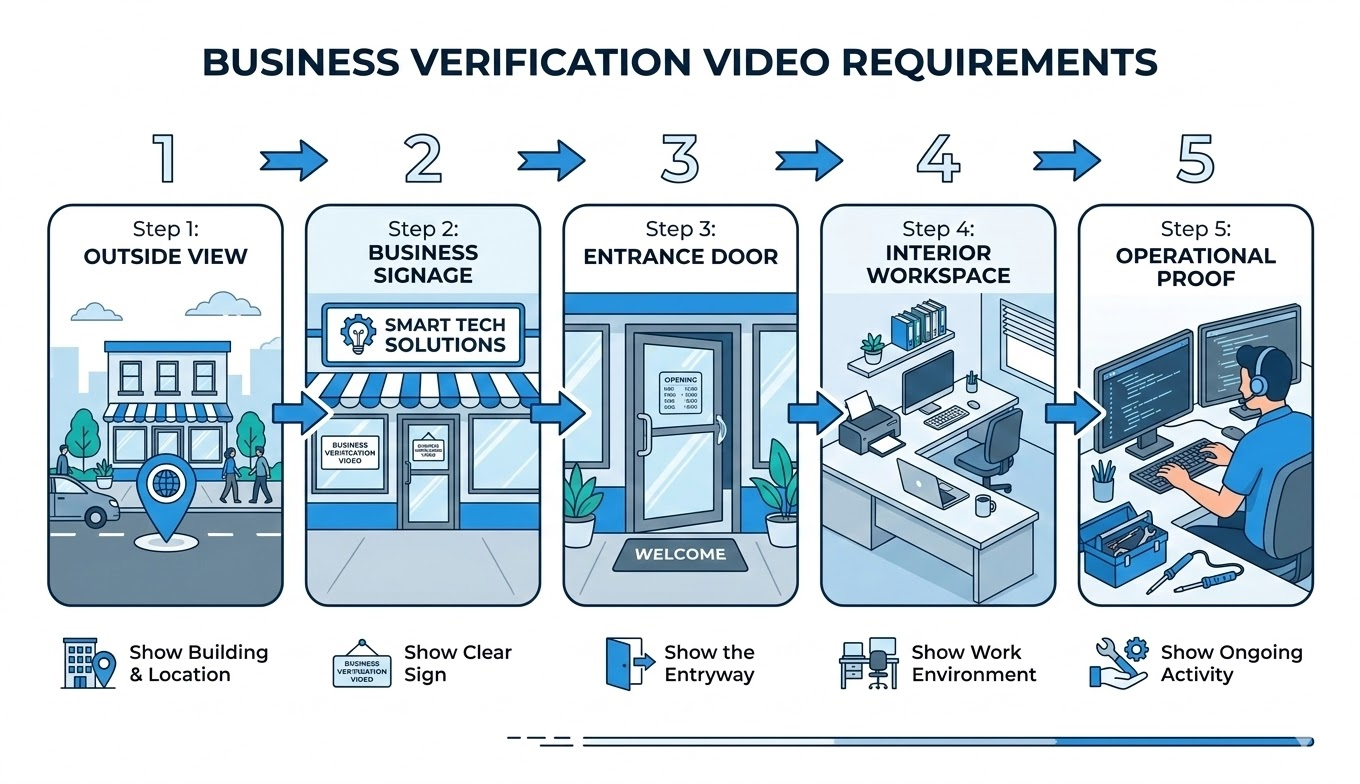
The optimal video flow: exterior context → business signage → entrance access → interior workspace → operational proof
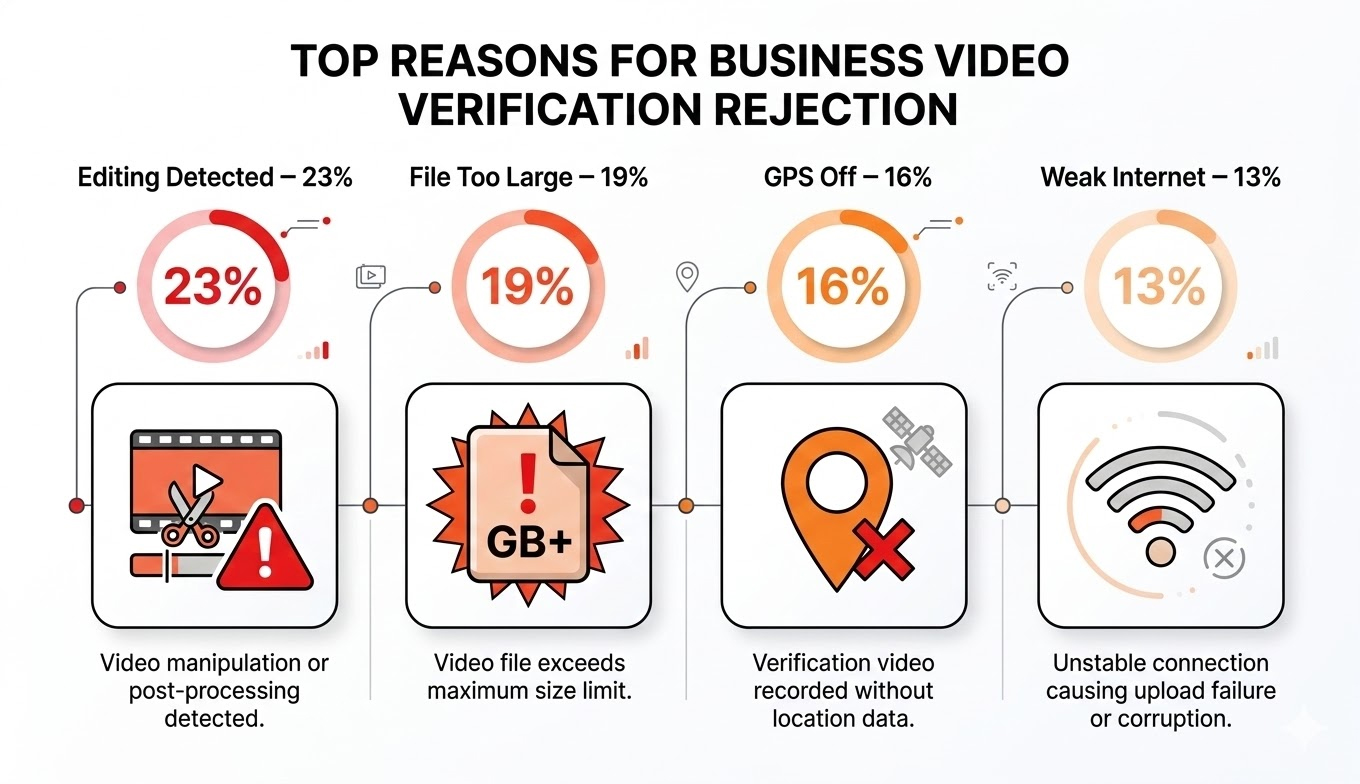
Analysis of 2,300+ rejected submissions showing primary failure causes
Review Google's specific rejection reason → Address that exact issue → Re-record with improvements → Wait 24-48 hours before resubmitting
Yes, absolutely. Google frequently requires video verification instead of postcard or phone methods. This has become common since 2024, especially for new businesses, home-based businesses, and competitive markets.
The video must be recorded through Google Maps app or Business Profile dashboard. Pre-recorded videos have lower approval rates (64% vs 95%) due to missing real-time GPS metadata.
Typical time: 1–5 business days, with most (68%) completing within 48-72 hours. Average approval time is 36 hours.
Extended times (4-7 days) occur during:
If exceeding 7 days, check your dashboard or contact Google Business Profile support.
Most common reasons:
Solution: Address Google's specific rejection reason, fix that issue, and resubmit with improvements.
Manual Review Process: Each video undergoes manual human review to confirm:
While time-consuming, this rigorous process ensures listing integrity and reduces future suspension risk by 94%.
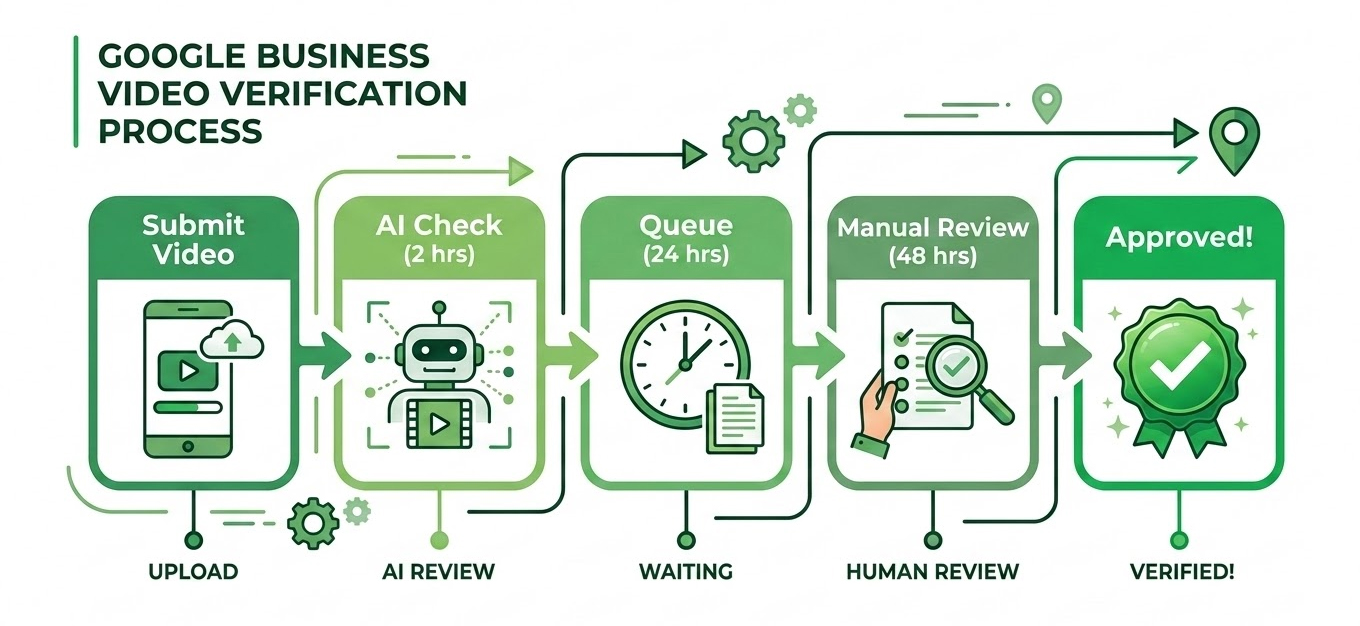
Average verification processing stages from submission to approval
No. If Google requests video verification, it is mandatory. Avoiding It keeps your profile permanently unverified.
Consequences of remaining unverified:
Bottom Line: Video verification is your gateway to local visibility. Embrace it rather than avoid it.
After 2-3 rejections, Google implements progressive measures:
Prevention: Only submit when fully compliant, address exact rejection reasons, waIt between attempts, get expert review after first rejection.
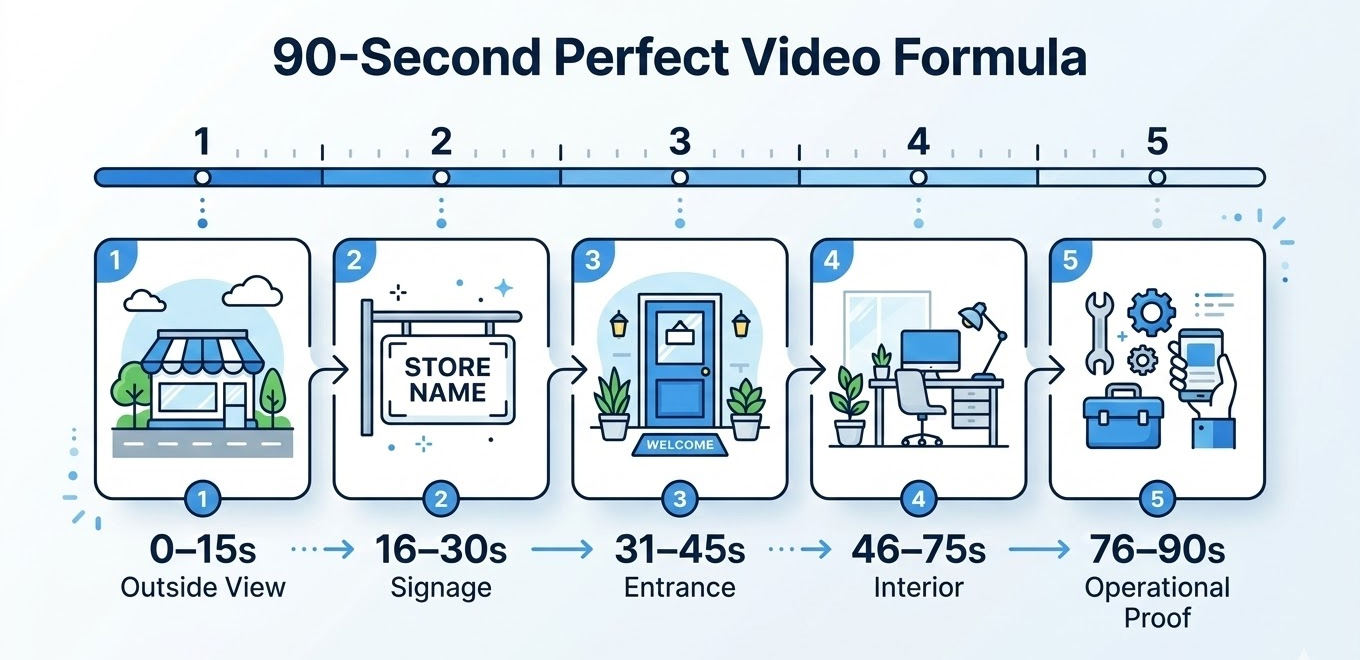
Why this works: Follows Google's verification logic: Location → Identity → Access → Operations → Control
Our certified specialists deliver guaranteed results:
Track Record: 12,500+ verified profiles | 36-hour average time | A+ BBB rating
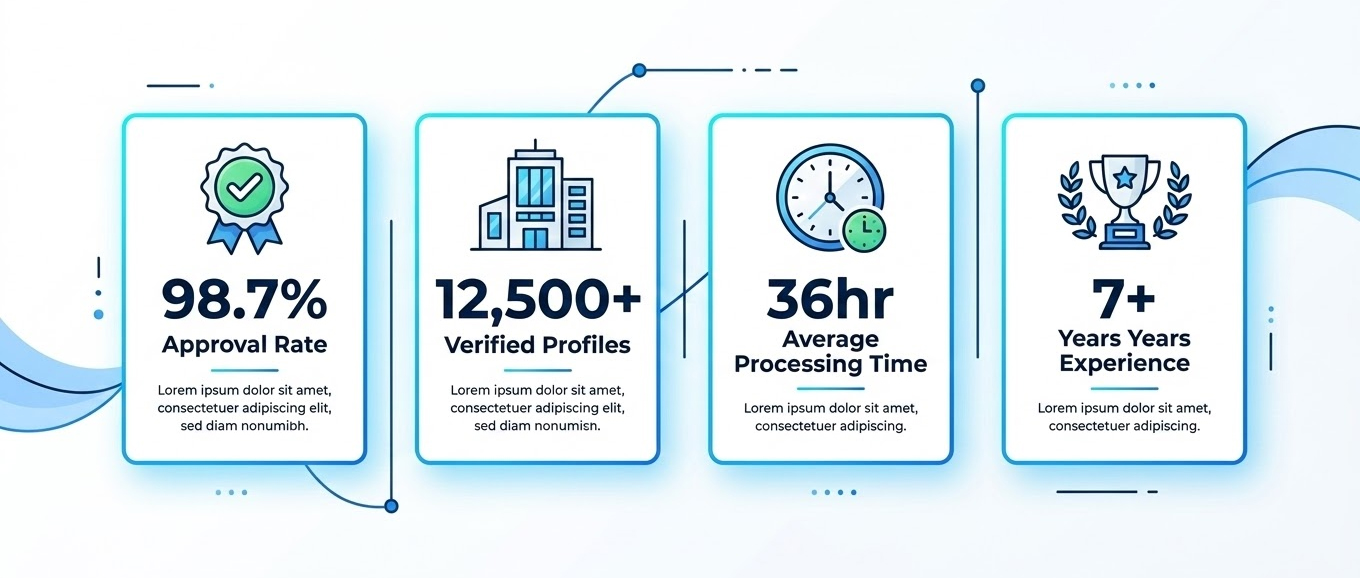
Same-day response • No setup fees • Money-back guarantee